What’s New in
DuckDuckGo
We're constantly making improvements to our product. Every quarter, we’ll post the best of our most recent updates here.
Q3 2026
Improvements to Maps
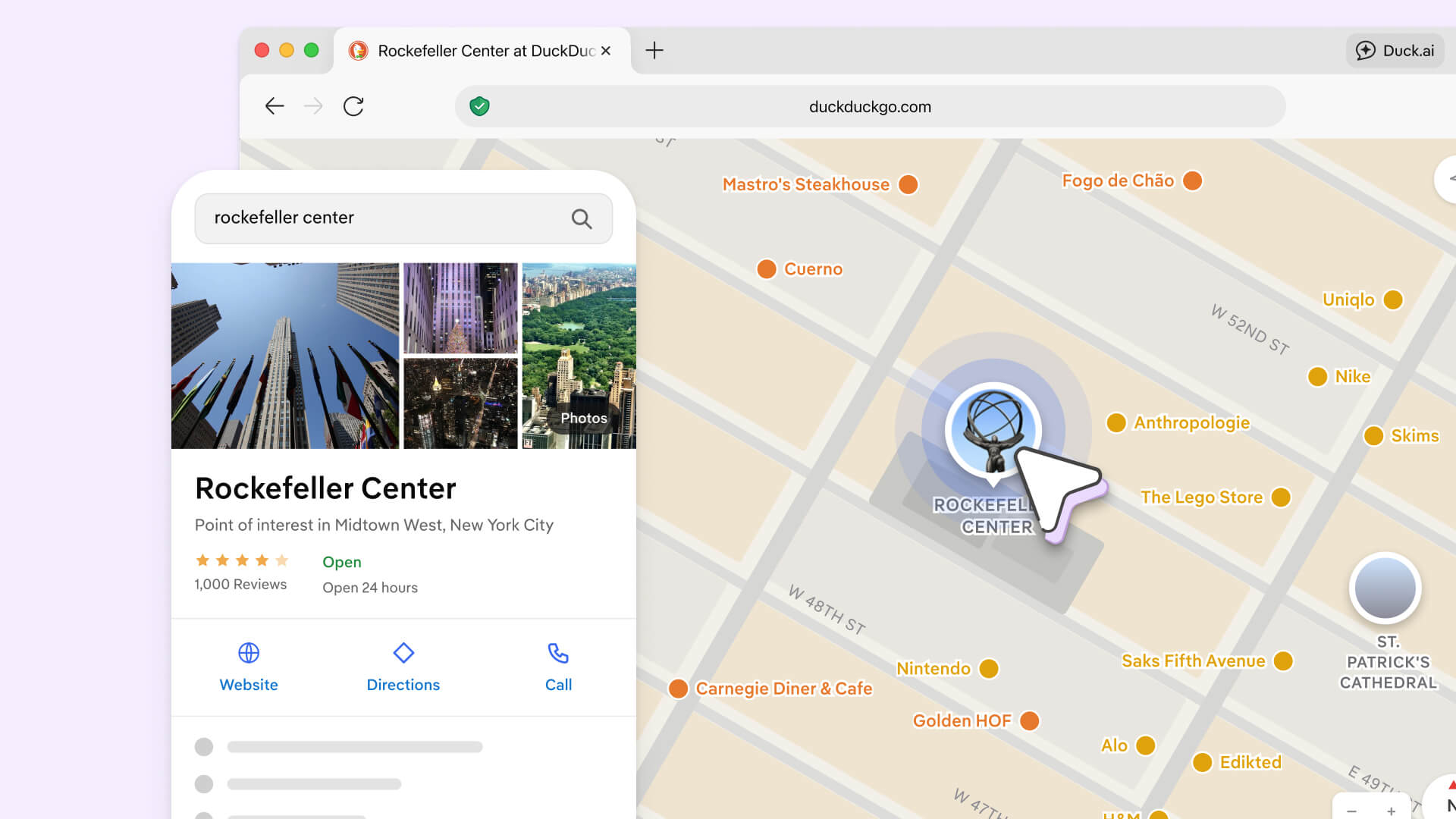
On desktop, you can now click on locations in DuckDuckGo’s expanded map to see details about them. We offer street-level “Look Around” previews on the expanded desktop map, too. Not available for all regions. You can also get cycling directions on desktop and mobile!
Sports Instant Answers Show Up More Often
MLB, NFL, NHL, and NCAA Football scores and team schedules show up more often for relevant searches.
Search Assist Shows More Often in More Languages
Search Assist answers now appear more often for French, Italian, German, Dutch and Spanish-language searches.
Improvements to Places Instant Answer
Local place results are now easier to read, with more at-a-glance information included. On mobile, you can now tap phone numbers to initiate a call.
Now Available: Luna, Terra and Sol
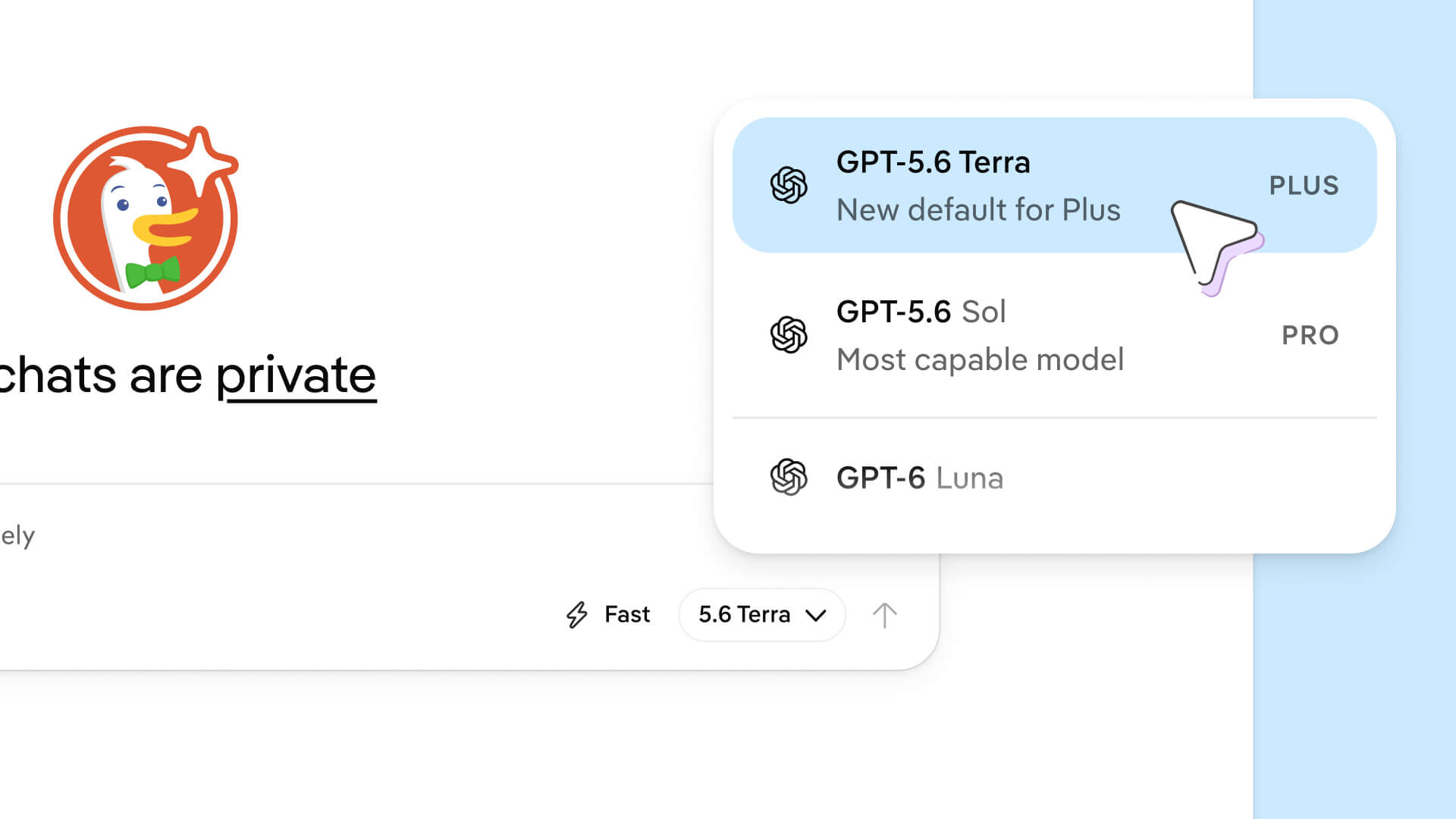
The new GPT-6 Luna is now available on Duck.ai. It’s totally free, always private, and offers upgraded intelligence. DuckDuckGo subscribers can also use GPT-5.6 Terra with a Plus plan and GPT-5.6 Sol with a Pro plan. Visit Duck.ai for all currently available AI models.
Upgraded Voice Chat Model
Duck.ai voice chat is now running on a more powerful AI model, with new reasoning capabilities and reduced echo.
Search Recent Chats
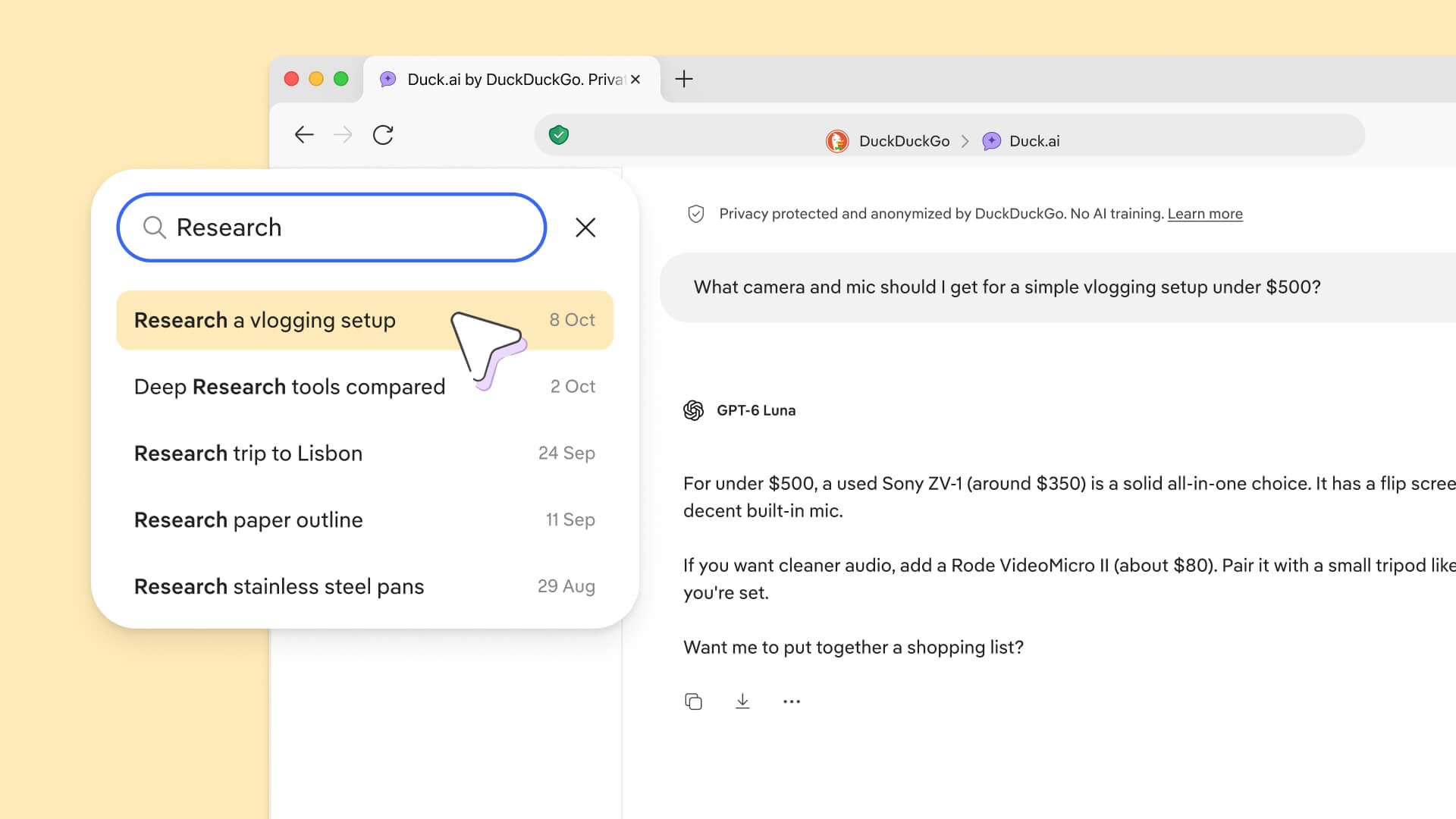
A new ⌕ button in the Duck.ai sidebar lets you search past chats by title or content. Searches run on your device, so your chats stay private and encrypted.
More Duck.ai Functions on DuckDuckGo Homepage
When starting a Duck.ai chat from the DuckDuckGo homepage, you can now choose an AI model, set the reasoning level, and access tools like image creation and web search. Available in any browser, across desktop and mobile.
Get a Second Opinion From Duck.ai
A new button lets you quickly and easily ask the same question to a second AI model. Just select 2nd opinion and Duck.ai will send the prompt to another model so you can compare responses. You can also choose from the full list of models manually by selecting the three-dot menu ⋯ > Switch Model under any response.
Updated Duck.ai Settings
We redesigned the Duck.ai Settings menu with clearer sections: Chats, Usage, DuckDuckGo Subscription, Appearance, About & Legal, and Feedback. In Appearance, a new System theme option follows your device’s light or dark mode.
Proactive Warnings for High-Usage Activities
Duck.ai now proactively warns you when an advanced AI model or reasoning mode will make you hit your limit faster. Warnings appear in the model picker and reasoning picker.
YouTube Ad Blocking
The DuckDuckGo browser now blocks most video ads! YouTube Ad Blocking is on by default for most users, so you can watch videos without all the interruptions. Disable or re-enable it any time from your browser’s Settings > Ad Blocking.
Copy Clean Links From Browsing Menu
A new Copy Clean Link option in the browser menu lets you copy page links with any tracking parameters removed.
Disable AI Features in One Tap
Don't want to use AI? Go to Settings > AI Features and tap the new Use DuckDuckGo Without AI button. The button disables Duck.ai, hides AI-assisted answers in search, and filters known AI spam sites in image search results.
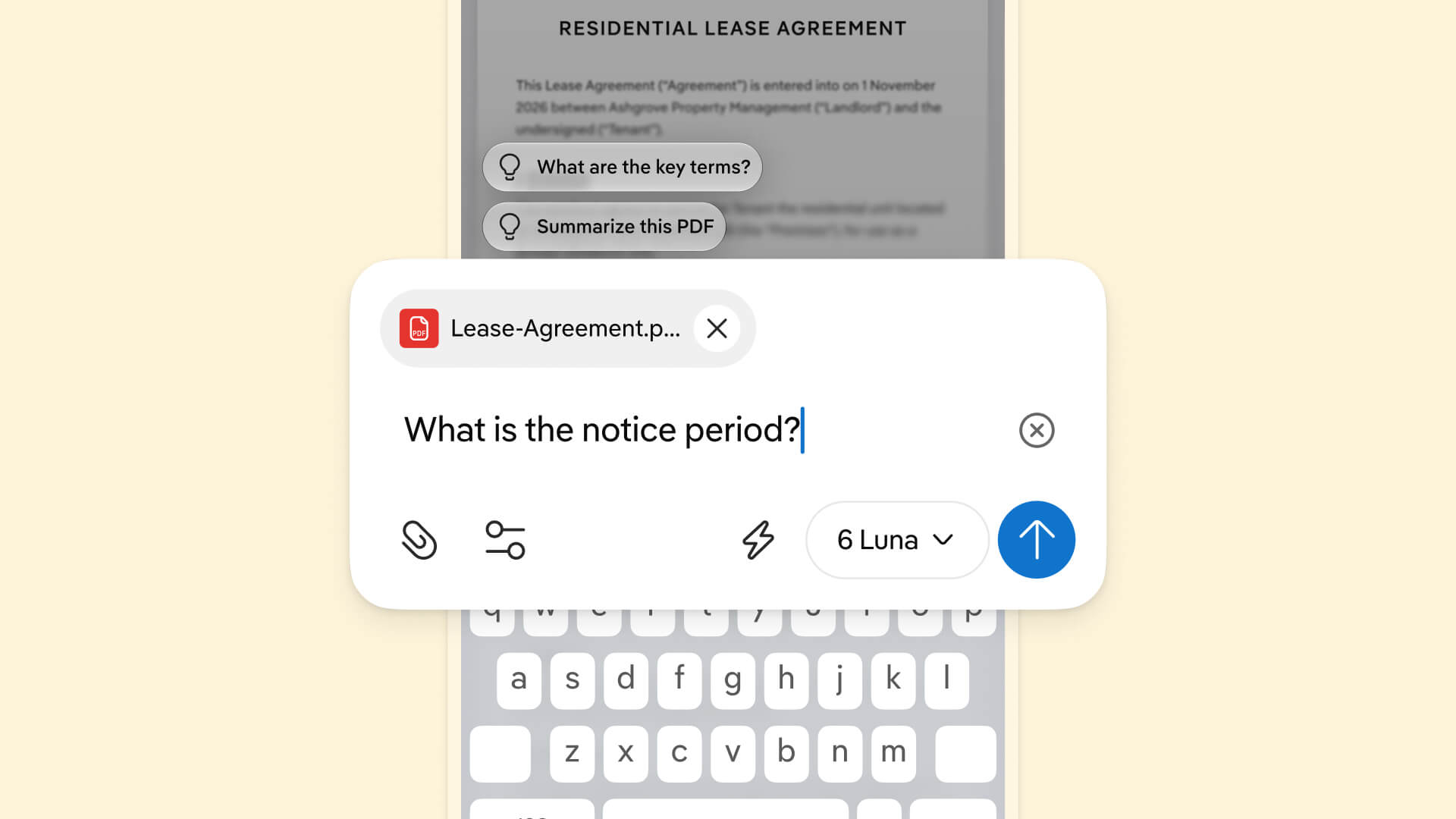
Ask Duck.ai About Selected Content and Open PDFs
You can now select text anywhere in the browser and tap Ask Duck.ai to send the highlighted content to a chat. You can attach up to five selections at once. Duck.ai will prompt you with Summarize this selection or Translate this selection, or you can ask a specific question. You can also ask about any PDFs you have open in a browser tab.
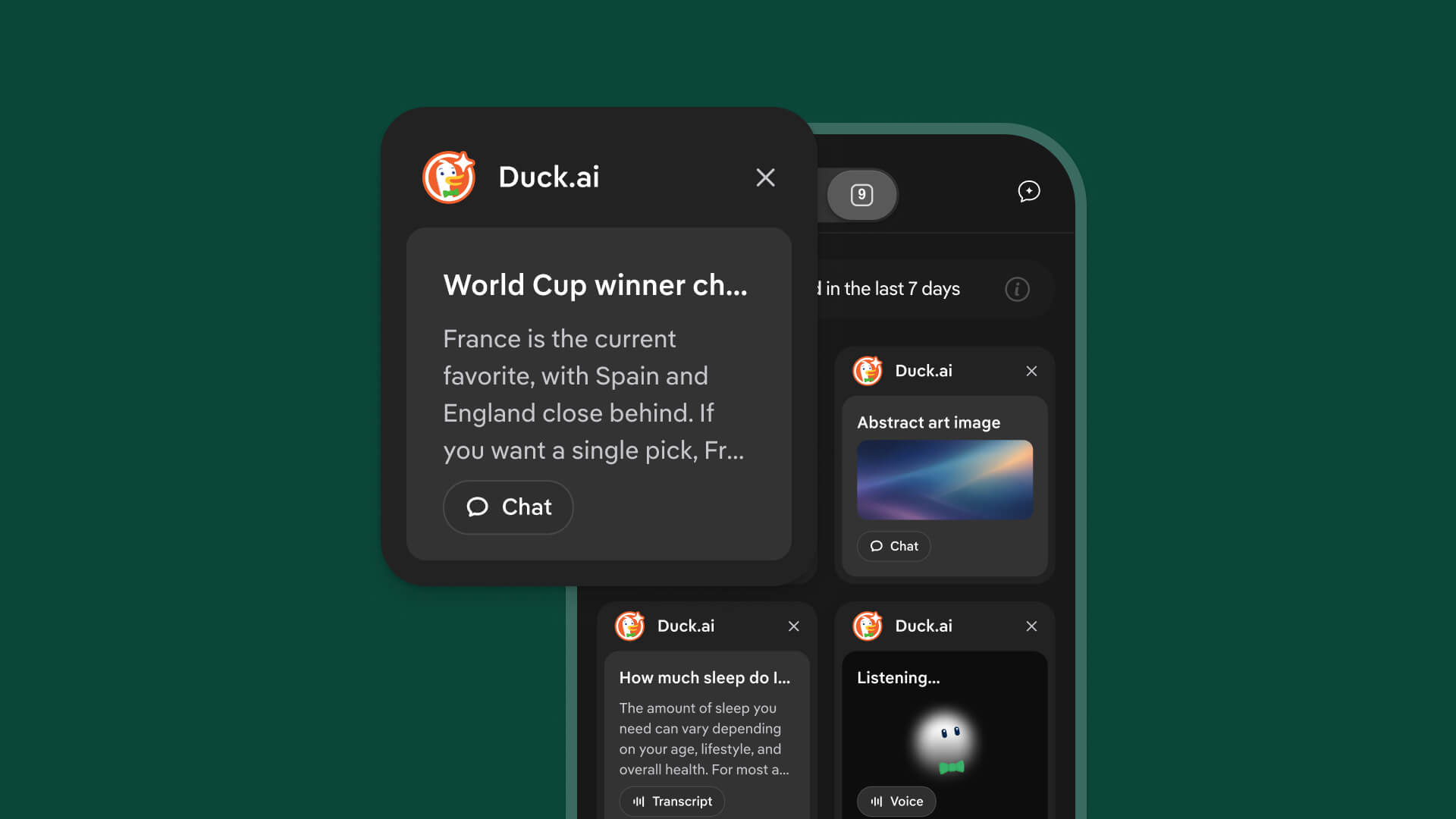
Preview Duck.ai Chats in Tab Manager
Looking for a Duck.ai chat in your tab manager? All chat tabs now show the chat title and a preview of the last message, so you can find specific chats at a glance.
Support for vCard Contact-Sharing Links
Tapping a contact card link now opens an Add to Contacts page, with the contact details already filled in. This joins recent improvements to iCal and Wallet compatibility.
Improvements to iPad Experience
We’ve made several updates to DuckDuckGo for iPad! A new “Hide Tab Bar While Scrolling” setting is now on by default. (If you want to keep the tab bar and address bar visible while you scroll, turn it off in Settings.) You can now long-press any tab to close it, or keep it open while closing all other tabs. Duck.ai controls for iPad now align with other Apple devices.
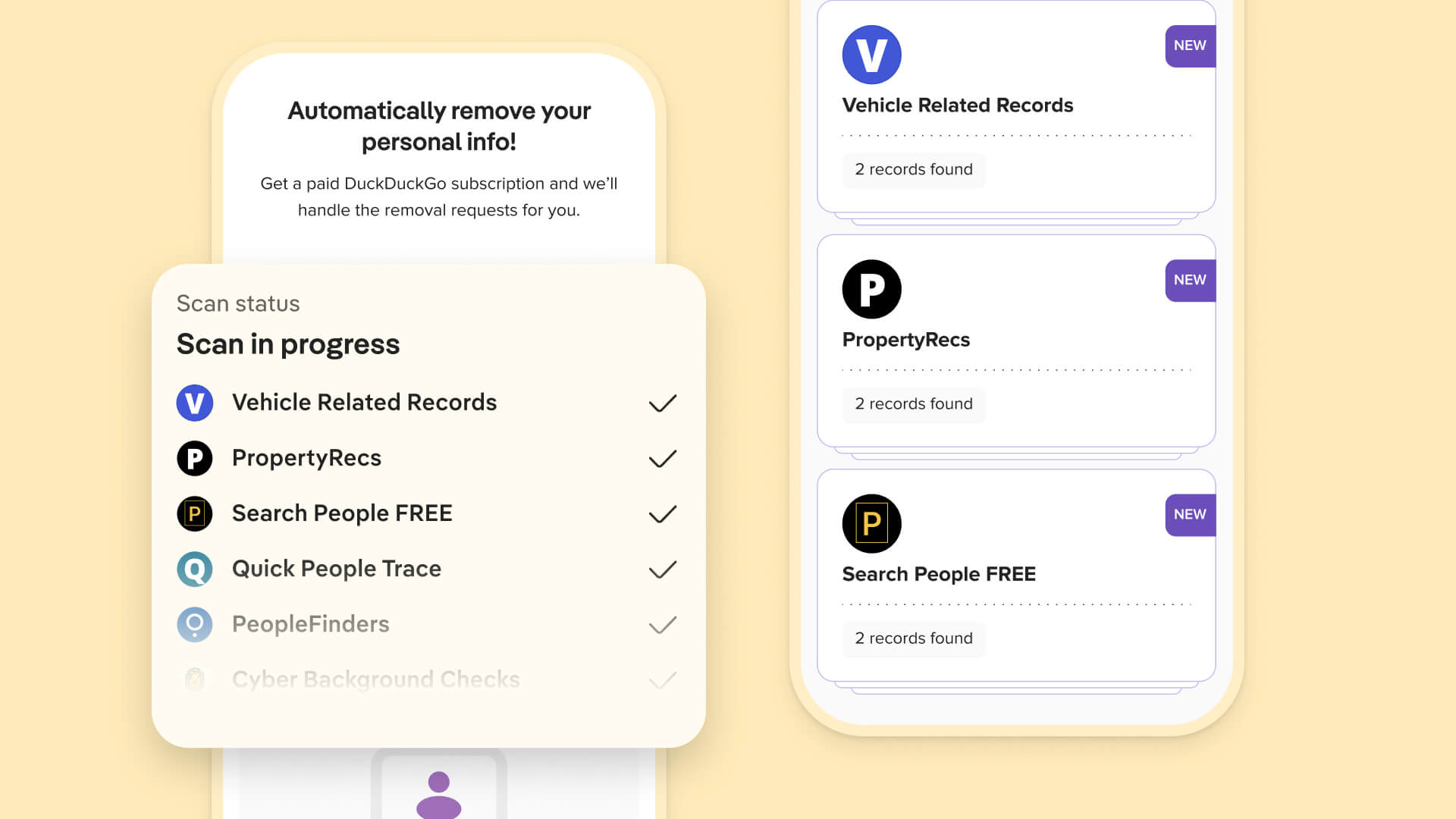
Free Personal Information Removal Scans on iOS
You can now preview DuckDuckGo’s Personal Information Removal service on iOS, even if you don’t have a DuckDuckGo subscription. The scan will comb through data broker sites that store and sell personal data and show you where your information appears.
To start your scan, go to Settings > DuckDuckGo Subscription > Personal Information Removal, tap Start Free Scan, and follow the prompts. If you want Personal Information Removal to handle the removal requests on your behalf, learn more at duckduckgo.com/subscribe. Personal Information Removal is available in the U.S. only.
YouTube Ad Blocking
The DuckDuckGo browser now blocks most video ads! YouTube Ad Blocking is on by default for most users, so you can watch videos without all the interruptions. Disable or re-enable it any time from your browser’s Settings > Ad Blocking.
Quick Setup for Returning Users
When returning users tap the I’ve Been Here Before button to skip the browser setup instructions, a new prompt helps them quickly customize their experience. You can now set DuckDuckGo as your default browser, add a Home Screen widget, and set address bar preferences without going through the step-by-step instructions.
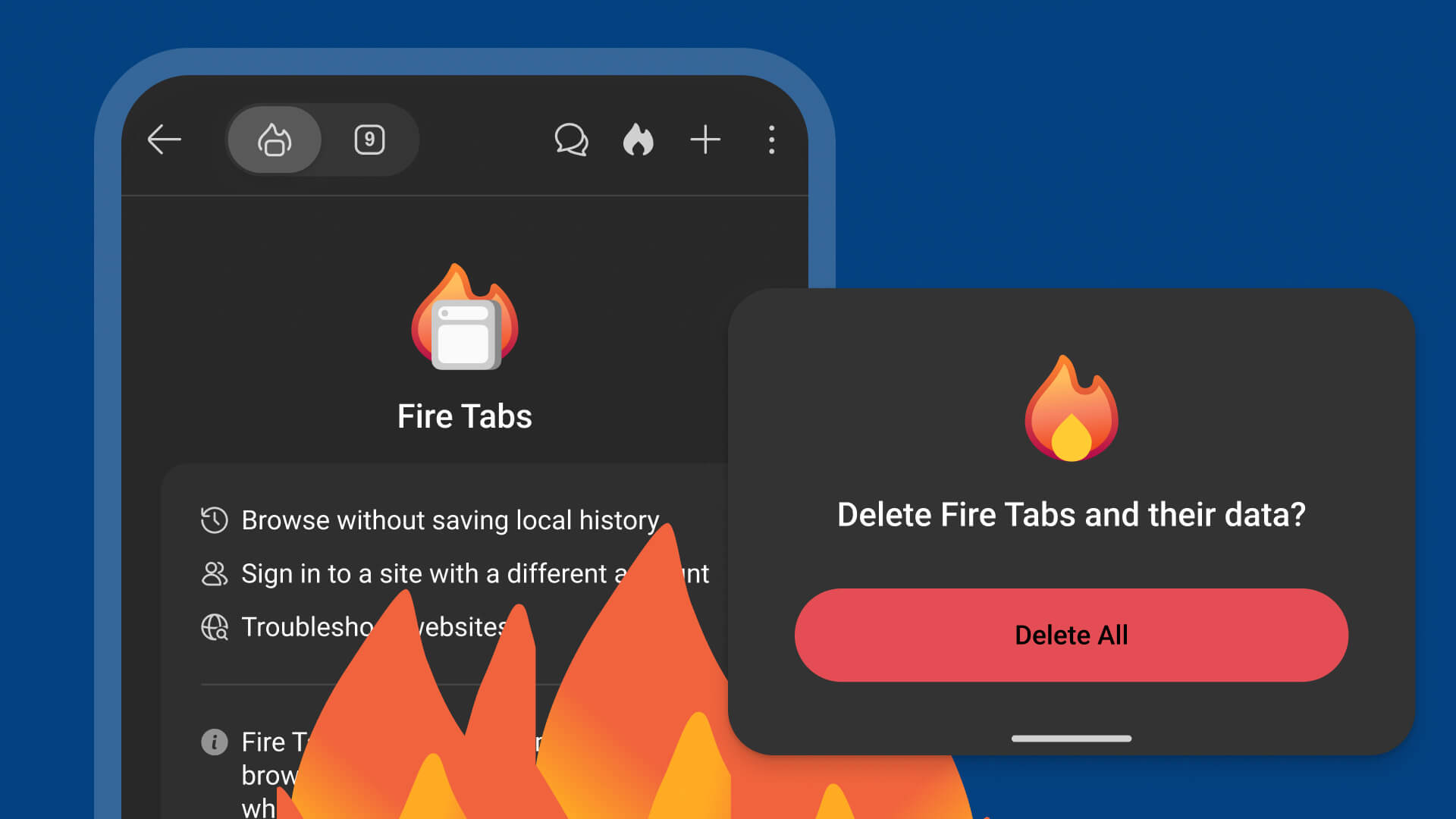
New Fire Tabs
Fire Tabs are now available on Android! Just like Fire Windows on desktop, Fire Tabs are isolated from your normal tabs. Websites you visit in Fire Tabs are not saved in your local browsing history. You can close and burn all your Fire Tabs at once, or burn them individually with the Fire Button.
Disable AI Features in One Tap
Don't want to use AI? Go to Settings > AI Features and tap the new Use DuckDuckGo Without AI button. The button disables Duck.ai, hides AI-assisted answers in search, and filters known AI spam sites in image search results.
More Duck.ai Controls From the Address Bar
Manage your Duck.ai chats directly from your address bar! You can now delete Duck.ai chats from the list of recent history suggestions under the address bar with an X – just like you’d delete a recent search. Want to revisit a previous chat instead? Tapping the Duck.ai icon in the address bar now offers a Recent Chats option, in addition to New Chat and Ask About Page.
YouTube Ad Blocking
The DuckDuckGo browser now blocks most video ads! YouTube Ad Blocking is on by default for most users, so you can watch videos without all the interruptions. Disable or re-enable it any time from your browser’s Settings > Ad Blocking.
Disable AI Features in One Click
Don't want to use AI? Go to Settings > AI Features and click the new Use DuckDuckGo Without AI button. The button disables Duck.ai, hides AI-assisted answers in search, and filters known AI spam sites in image search results.
New Option To Sort Bookmarks
You can now sort bookmarks alphabetically with a new Reorder by name option in the Bookmarks menu.
Open Duck.ai From Anywhere With Optional Keyboard Shortcut
You can open a Spotlight-style Duck.ai prompt bar from anywhere on your Mac, using the Option + Space keyboard shortcut. We also added an optional shortcut for your menu bar. Both are off by default; turn them on or off in your browser Settings > AI Features.
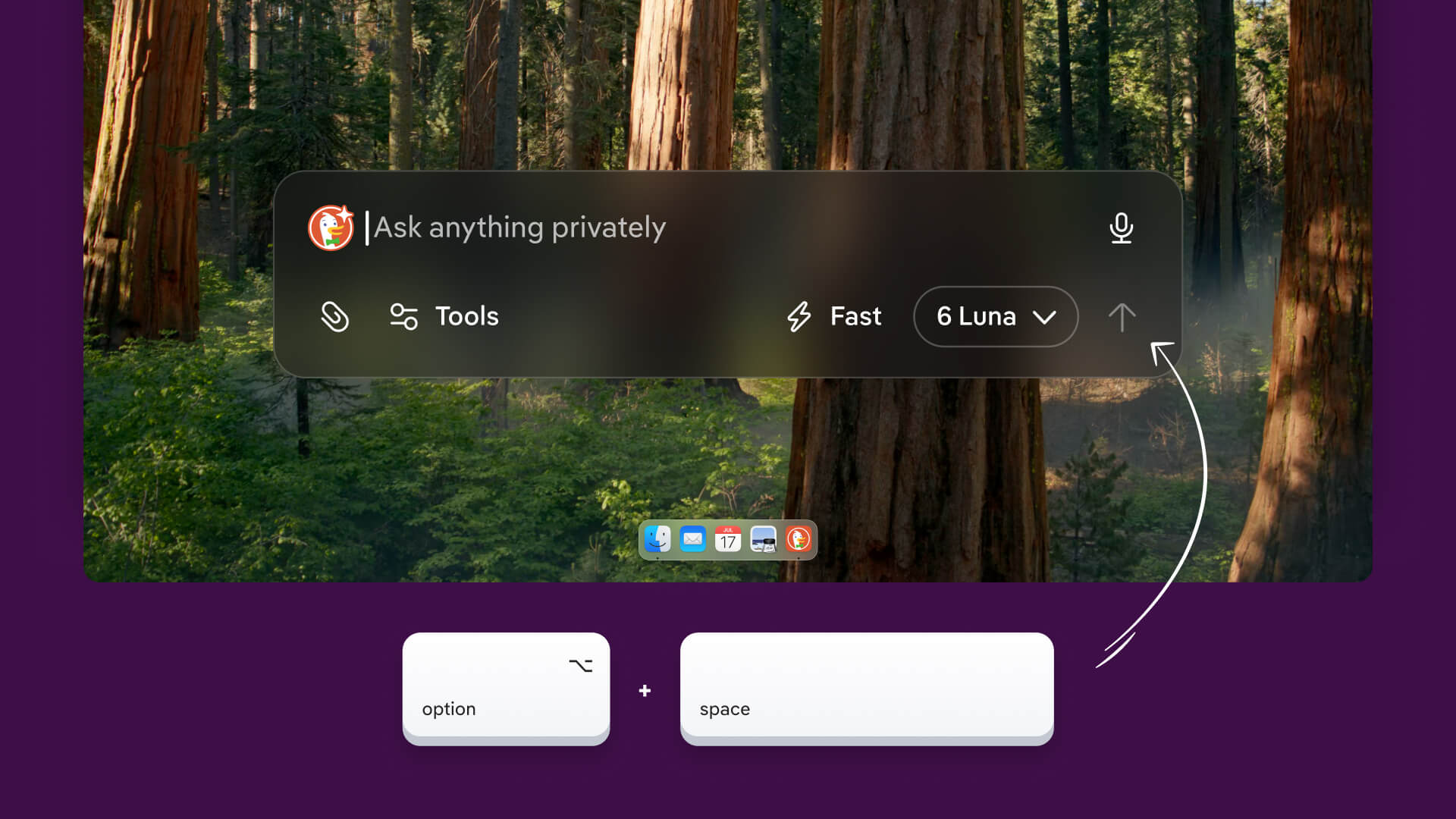
More Ways To Share/Analyze Web Content With Duck.ai
You can now highlight text anywhere in the browser and right-click to Ask Duck.ai, sending the highlighted content to a chat. You can attach up to five selections at once. Duck.ai will prompt you with Summarize this selection or Translate this selection, or you can ask a specific question.
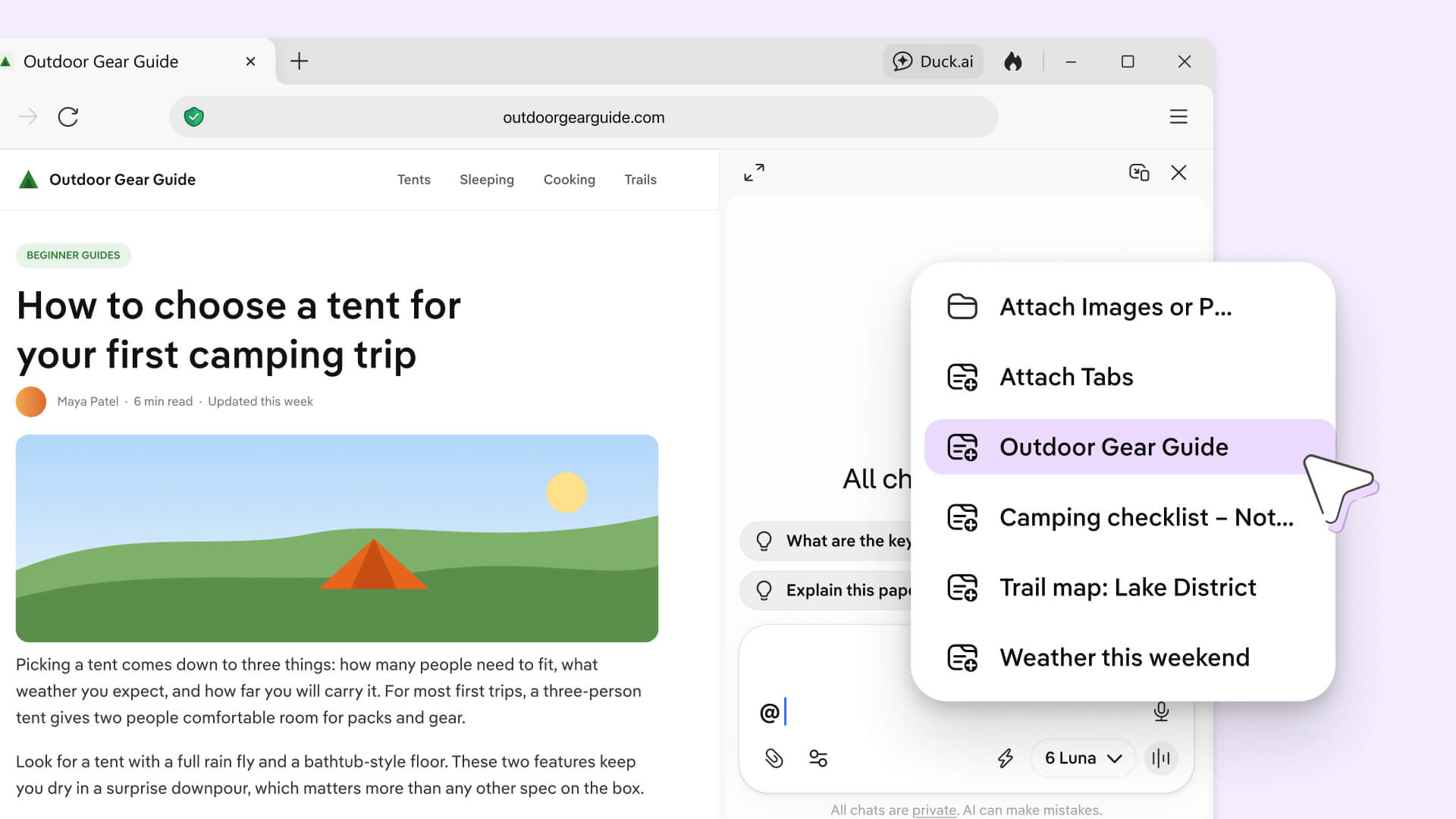
You can also ask about any tabs or PDFs you have open in a browser tab. Type @ in the chat box to pick from a list of open tabs or use the Attach menu.
YouTube Ad Blocking
The DuckDuckGo browser now blocks most video ads! YouTube Ad Blocking is enabled by default for most users, so you can watch videos without all the interruptions. Disable or re-enable it any time from your browser’s Settings > Ad Blocking.
Improved Website Permission Options
We made it easier to manage website permissions like location, camera, microphone, and notifications. Go to Settings > Website Permissions to see and edit which websites you’ve given permissions to.
Disable AI Features in One Click
Don't want to use AI? Go to Settings > AI Features and click the new Use DuckDuckGo Without AI button. The button disables Duck.ai, hides AI-assisted answers in search, and filters known AI spam sites in image search results.
Open Duck.ai From Anywhere With Optional Keyboard Shortcut
You can open a floating Duck.ai chat bar from anywhere on your Windows computer, using the Ctrl + Alt + Space keyboard shortcut. We also added an optional shortcut for your taskbar. Both are off by default; turn them on or off in your browser Settings > AI Features.
More Ways To Share and Analyze Web Content With Duck.ai
You can now highlight any text on a web page and right-click to Ask Duck.ai about selected content.
You can also ask about open browser tabs once you’re on Duck.ai. Just type @ or use the attachment menu to add open tabs to your chat and ask about them.